Agent DVR: Organizing Servers
Removing a Server from Your Account
Want to keep disconnected Agent DVR from your online account? Follow these steps to keep it running independently:
- Sign in to ispyconnect.com/app
- Choose your server then click on Account menu - Remove Server
Move to another Account
To transfer Agent DVR to another account, follow these steps:
- Remove Agent DVR from your current account.
- Click on the server icon, Remote Access and connect it to your new account.
Switching to a New Computer
Windows
- First, uninstall Agent DVR from your old computer using Add/Remove programs, or if it's not listed there, double-click agent-uninstall-service.bat in the Agent DVR directory (C:/program files/Agent).
- Next, download and install Agent DVR on your new PC.
- On your new PC, open 'services.msc' from the Run dialog, find Agent DVR in the list, right-click it, and click 'Stop' to pause the service momentarily.
- Now, copy the /Media directory from your old Agent DVR directory to the new one. This directory might be large, so using a large USB drive could be handy. If you only need the configuration, just copy the Agent/Media/XML directory, excluding Media/XML/fileDB.db3.
- Once everything's copied over, restart the Agent DVR service on your new PC through 'services.msc' - find Agent DVR, right-click it, and click 'Start' to get things rolling.
- Optionally, you can delete the original Agent DVR directory from your old PC once you confirm everything is smooth sailing on your new setup.
Linux
- On your old PC, open a terminal window and gracefully stop Agent DVR with these commands:
. This ensures a clean shutdown.sudo systemctl stop AgentDVR.servicesudo systemctl disable AgentDVR.service - Ready for a fresh start? Download and install Agent DVR on your new Linux PC. It's a new beginning!
- On your new PC, open a terminal and run
to pause the service for setup.sudo systemctl stop AgentDVR.service - Time to transfer your data! Copy the /Media directory from your old Agent DVR setup to the new one. If it's quite large, consider using a large USB drive. Just need the settings? Copy only the Agent/Media/XML directory (leave out Media/XML/fileDB.db3).
- In the terminal of your new PC, run
to restart the Agent DVR service. Your surveillance system is now up and running!sudo systemctl start AgentDVR.service - If everything's working perfectly, feel free to clean up by deleting the original Agent DVR directory on your old PC.
Mac OS
- On your old Mac, start by opening a terminal window and run these commands to unload and remove the Agent DVR service:
This ensures a smooth departure.sudo launchctl unload -w /Library/LaunchDaemons/com.ispy.agent.dvr.plistsudo rm -f /Library/LaunchDaemons/com.ispy.agent.dvr.plist - Ready for a fresh setup? Download and install Agent DVR on your new Mac.
- On your new Mac, open a terminal and pause the Agent DVR service with
sudo launchctl unload -w /Library/LaunchDaemons/com.ispy.agent.dvr.plist - It's moving time! Transfer the /Media directory from the old Agent DVR setup to the new one. If you have a lot of data, a large USB drive might come in handy. Just need the settings? Copy over the Agent/Media/XML directory (excluding Media/XML/fileDB.db3).
- In the terminal of your new Mac, bring Agent DVR to life by running
Your surveillance setup is now good to go!sudo launchctl load -w /Library/LaunchDaemons/com.ispy.agent.dvr.plist - Feel free to clean up and delete the original Agent DVR directory from your old Mac once everything is confirmed to be working seamlessly on your new setup.
Important
Got a subscription? Time to link your new Agent DVR setup to your account. Simply click on the Server icon in the local UI and select Remote Access to pair it with your online account. Stay connected, effortlessly!
If you're a license holder, remember to transfer your license to the new PC.
Using a basic subscription with two Agent DVR instances? Remember, only one can be active on the web portal at a time. To switch, just stop the first instance, and the other will connect seamlessly.
If you've customized drives and storage directories on your old PC, dive into the settings on your new PC to tweak the storage settings to match your new environment. Keep everything organized just the way you like it!
Multi View
If you have more than one Agent DVR server linked to your account, Multi-View provides a single, unified interface to monitor and control all of them at once. This is especially useful for users managing cameras across multiple sites, departments, or locations.
To open Multi-View, choose “Multiple Servers” from the server selection dialog. Agent DVR will then display every server you have access to in a fully customizable, resizable grid.
Multi-View gives you complete flexibility in how your servers are arranged. A typical layout looks like this:
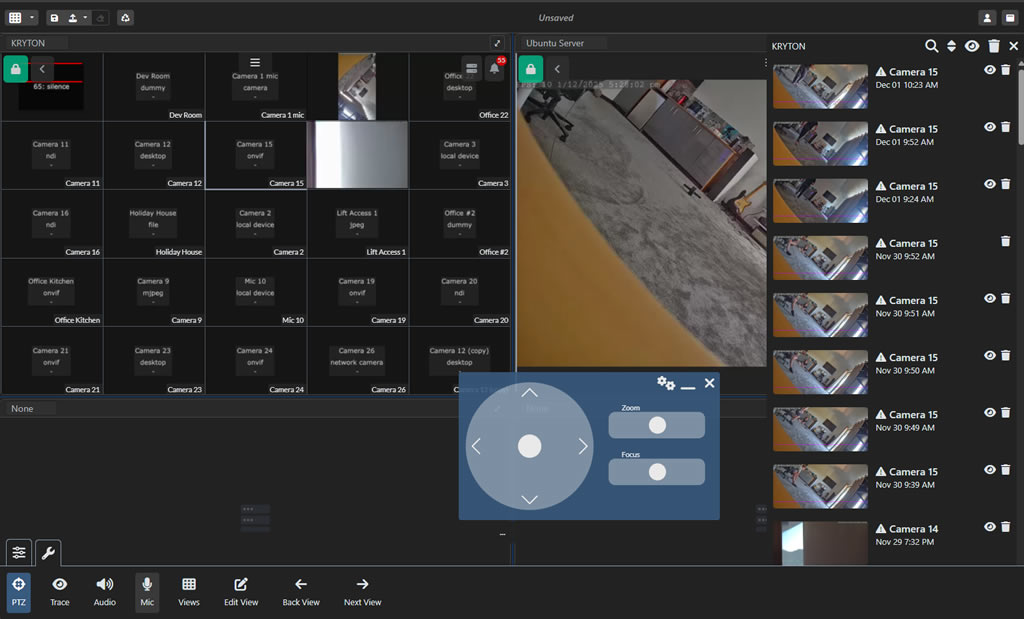
The toolbar at the top of Multi-View includes several layout and management options:
- Configure Grid: Adjust the number of rows and columns. This lets you display as many servers as you need in the arrangement you prefer.
- Save Layout: Store your current layout as a preset so you can quickly return to it at any time.
- Load Preset: Apply a previously saved layout to instantly switch between different monitoring configurations.
- Clear Selection: Remove the current set of servers from the grid so you can start fresh.
- Reset Layout: Restore the grid to its default configuration.
Multi-View automatically remembers your layout, so once you’ve configured it the way you want, it will be ready for you every time you log in. This makes it ideal for ongoing monitoring, control rooms, and multi-site management.